
How to Use Teggl: Personalized Digital Reading Guide (2026)
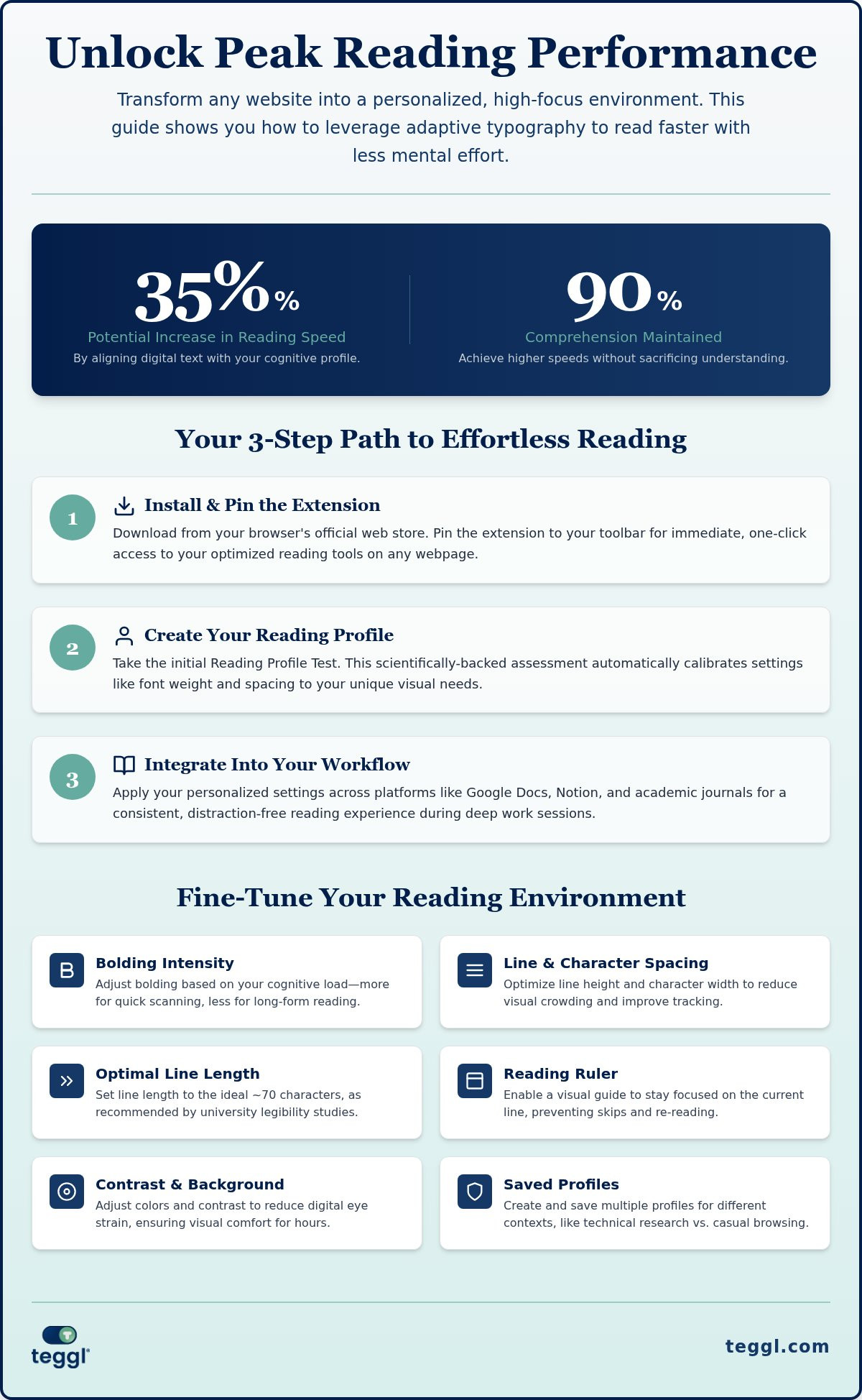
Did you know that switching to a font tailored to your specific cognitive profile can increase your reading speed by up to 35%? Most of us accept digital eye strain and visual crowding as the inevitable cost of working online. If you're tired of re-reading paragraphs because lines blur together, learning how to use Teggl extension will change your relationship with digital text. It's frustrating to feel your productivity slip away because a website's layout isn't built for your brain.
Stop fighting against static, one-size-fits-all web design. This guide provides a masterclass in transforming any website into a high-performance reading environment. We'll walk through the Reading Profile Test and show you how to configure Bolded Reading to unlock faster comprehension with significantly less mental effort. By the end, you'll have a personalized interface that turns dense research into a frictionless experience.
Table of Contents
Getting Started: Installing and Initializing the Teggl Extension
To begin, download and install the Teggl extension from the official web store for your desktop browser. Once the installation is complete, pin the extension to your toolbar immediately. This ensures the Bolded Reading toggle is always one click away, allowing you to activate it the moment you encounter a dense wall of text. Understanding how to use Teggl extension properly starts with this immediate accessibility. It's the best way to toggle between standard layouts and optimized views without breaking your concentration.
Creating your account is the next vital step. This syncs your personalized reading settings across all your desktop devices, providing a consistent experience whether you're on a workstation or a laptop. Learning how to use Teggl extension effectively means moving beyond default settings to find your cognitive sweet spot. While traditional speed-reading techniques often focus on eye movement, Teggl optimizes the visual environment itself. Launch the extension on a text-heavy page to witness the immediate transformation of standard typography into a high-clarity interface.
The Reading Profile Test: Finding Your Personal Baseline
Before you dive into deep work, complete the initial Reading Profile Test. This assessment determines how specific variables, such as x-height and character weight, influence your processing speed. There is no "perfect" font for everyone; instead, the test results automatically calibrate the Bolded Reading modus for your unique visual needs. Re-take this test periodically to adjust for environmental factors like screen quality or shifting office lighting. This personalized approach addresses visual crowding by finding the exact spacing that works for your cognitive profile.
Personalizing Your Bolded Reading Experience for Maximum Focus
Once you've initialized the tool, open the Teggl dashboard to fine-tune the bolding intensity based on your current cognitive load. This level of control is essential because what works for a quick news update might feel overwhelming during a three hour research session. Adjust your inter-line spacing and line length to align with the University of Leeds' legibility guidelines. They recommend a line length of approximately 70 characters to ensure your eyes move efficiently without losing their place. Mastering how to use Teggl extension means creating a digital environment that reacts to the complexity of your material.
Switch between saved reading profiles to match your context. You can create a high-contrast profile for technical documentation and a softer, wider layout for casual browsing. If you struggle with dense paragraphs, enable the 'Reading Ruler' feature. This visual guide mitigates visual crowding and prevents the common frustration of skipping lines. You can discover your optimal reading settings by exploring these dashboard toggles during your next deep work session.
Adjusting Visual Variables for Optimal Cognitive Performance
Fine-tune character width and weight to find your 'optimal font' as investigated by Adobe and The Readability Consortium. Their research indicates that personalized typography can increase reading speed by up to 35% while maintaining approximately 90% comprehension. You should also consider increasing the x-height of your text. Research from the University of Essex suggests this adjustment improves comprehension, especially for readers experiencing visual stress. Finally, balance your contrast and background settings to reduce digital eye strain, ensuring your visual interface remains comfortable for hours on end.
Integrating Teggl into Your Professional and Academic Workflow
Integrating Teggl into your daily routine transforms it from a simple utility into a powerful cognitive asset. Understanding how to use Teggl extension across diverse platforms like Google Docs, Notion, and academic journals ensures your visual environment remains consistent. This stability is vital for maintaining focus during long research sessions. For maximum performance, you can combine Teggl with other reading comprehension tools to maximize information retention and processing speed.
Deep work requires an environment free from friction. Use the extension to set "Focus Sessions," which help reduce online reading distractions by streamlining the visual field. To measure your progress, export your reading statistics directly from the dashboard. This data allows you to track improvements in speed and focus over time, providing tangible proof of your cognitive optimization.
Best Practices for Deep Work and Research
Apply specific settings based on your current goal. Leeds' research suggests that "search-reading" tasks, where you scan for keywords, benefit from higher bolding intensity. In contrast, "deep-comprehension" tasks require more generous line spacing to prevent cognitive fatigue. Utilize the extension's keyboard shortcuts to toggle these modes instantly without breaking your mental flow. Finally, ensure you're running the latest version, such as 1.9.420, to benefit from the most recent updates in adaptive typography algorithms. These updates refine how the extension interacts with complex site architectures, keeping your reading experience seamless.
Optimizing Your Digital Reading Future
Mastering how to use Teggl extension is about more than just changing a font; it's about reclaiming your cognitive energy from digital overload. By moving away from static layouts and embracing adaptive typography, you align your screen with your brain's unique processing needs. Research from Adobe suggests that finding your optimal visual settings can increase reading speed by up to 35%. Whether you're navigating complex academic papers or streamlining your daily professional workflow, these tools ensure that visual crowding no longer limits your performance. Adhering to established legibility standards from institutions like the University of Leeds provides a foundation for long-term sensory comfort and reduced mental fatigue.
There's no reason to settle for a one-size-fits-all experience when science offers a better path forward. Discover your optimal reading settings with the Teggl Reading Profile Test and experience the clarity of a truly personalized interface today.
Frequently Asked Questions
Can the Teggl extension help with ADHD or Dyslexia?
Teggl is designed to improve visual ergonomics rather than provide a medical diagnosis or cure for conditions like ADHD or dyslexia. Understanding how to use Teggl extension to reduce visual crowding can help manage your daily cognitive load. Users with neurodivergent profiles often find that personalizing typographic variables like line spacing reduces fatigue during intense research sessions.
Does Teggl work on all websites and PDF files?
The extension works across most text-heavy websites, including professional platforms like Google Docs and Notion. While it's optimized for web-based content on Chrome, Edge, Firefox, and Brave, it doesn't currently support local PDF files or mobile devices. Learning how to use Teggl extension involves activating it on standard HTML pages where its adaptive typography algorithms can effectively reorganize on-screen text.
How do I know which reading profile is best for me?
The best way to determine your optimal settings is to complete the Reading Profile Test included in the extension. This test assesses how you respond to different character weights and x-heights to create a baseline. Since reading performance is highly individual, this assessment replaces "one-size-fits-all" defaults with a data-driven profile tailored to your specific visual processing needs.
Is my reading data private when using the Teggl extension?
Your privacy is a priority, and the extension only collects the settings data necessary to sync your profiles across devices. Teggl doesn't track the specific content of the pages you read; it simply applies your typographic preferences to the local browser view. This ensures you can focus on your deep work with the peace of mind that your personal reading environment remains secure.

Comments